If you use ChatGPT Team or ChatGPT Business, you may run into a common issue when trying to share a conversation:
“The share links are visible to workspace members only.”
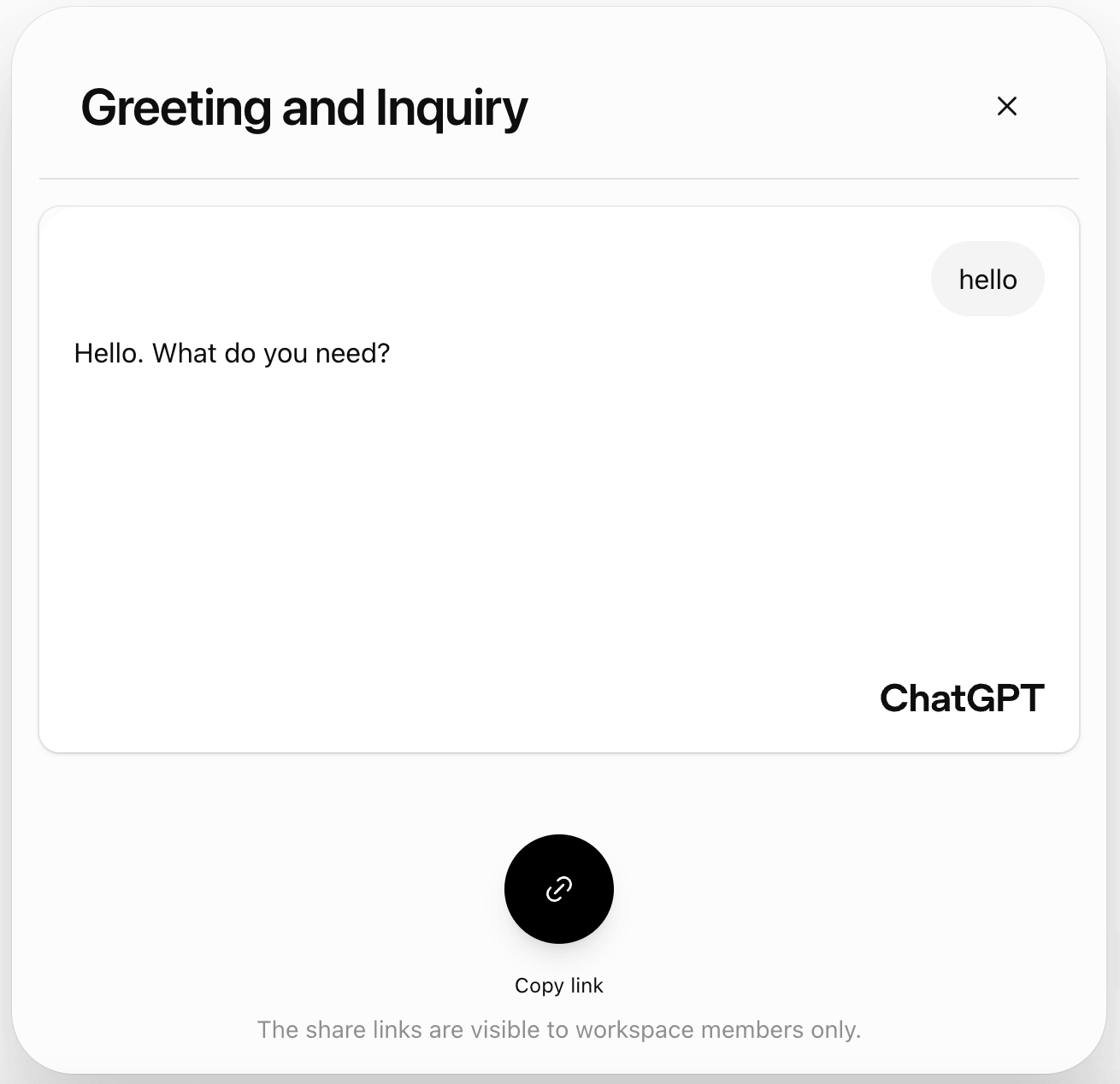
This means the shared conversation link can only be viewed by people who belong to the same ChatGPT workspace.
From a security perspective, this makes sense. ChatGPT Team and Business are designed for organizational use. Conversations may include internal strategy, customer data, code, product plans, financial assumptions, legal notes, or confidential business information. Restricting shared links to workspace members helps reduce accidental data exposure.
But from a practical workflow perspective, this limitation can be frustrating.
Many ChatGPT conversations are created for external collaboration. You may use ChatGPT Team to draft a client report, analyze customer feedback, compare competitors, prepare campaign ideas, generate a technical explanation, or summarize research for a partner. In those cases, the people who need to review the conversation are often outside your workspace.
A client is not in your workspace.
A contractor is not in your workspace.
A vendor is not in your workspace.
A public reader is not in your workspace.
So when you send them the native ChatGPT Team share link, they may not be able to open it.
That is the core problem: your AI conversation may be valuable, but it is locked behind workspace permissions.
ChatView solves this by turning AI conversations into independent, shareable web pages. Instead of relying on ChatGPT’s native workspace-restricted sharing, you can save a ChatGPT Team conversation, publish it as a controlled page, and share that page with clients, partners, contractors, vendors, or public audiences.
The viewer does not need to join your ChatGPT workspace. They do not need a ChatGPT Team account. They do not need access to the original conversation. They simply open a link in their browser.
Why Are ChatGPT Team Share Links Visible Only to Workspace Members?
ChatGPT Team and ChatGPT Business are built around the concept of a workspace.
A workspace defines the organization, users, permissions, billing, data controls, and collaboration boundary. When you create a conversation inside that environment, the platform treats it as workspace content.
That is why shared links may be limited to workspace members only.
This restriction usually means:
- External clients cannot open the link
- Contractors cannot review the conversation
- Vendors cannot access the shared page
- Public readers cannot view the content
- Search engines cannot index the conversation
- The conversation cannot be used as a public resource page
- The content remains tied to the original ChatGPT workspace
This is not necessarily a bug. It is a permission model.
For internal collaboration, it works well. For external sharing, it creates friction.
When Native ChatGPT Team Share Links Work Well
Native ChatGPT Team share links are useful when everyone who needs access belongs to the same workspace.
For example, they work well when you want to:
- Share an AI analysis with a teammate
- Let a manager review a conversation
- Send a prompt workflow to another team member
- Use an AI conversation in internal training
- Review generated copy with your internal marketing team
- Share research notes inside a project group
- Document internal AI usage examples
In these situations, the workspace restriction is acceptable because the audience is internal.
The problem appears when the audience is external.
If you need to share a ChatGPT Team conversation with a client, partner, consultant, freelancer, vendor, investor, public reader, or anyone outside the workspace, the native share link may not be enough.
Why Copying and Pasting Is Not a Good Solution
When a ChatGPT Team share link does not work externally, many people use the fastest workaround: copy and paste the conversation into an email, Google Doc, Notion page, Slack message, PDF, or project management tool.
This can work for short text. But it becomes unreliable for serious client or partner-facing work.
ChatGPT conversations often include:
- Headings
- Lists
- Tables
- Code blocks
- Links
- Uploaded file references
- Multi-turn context
- Prompt-response sequences
- Iterations and revisions
- Technical details
- Structured recommendations
When copied manually, the formatting can break. Tables may become unreadable. Code blocks may lose indentation. The boundary between user prompts and AI responses may become unclear. Long conversations can turn into messy documents that are hard to review.
Copying and pasting also creates maintenance problems.
If the original conversation changes, you need to copy and paste again. If you send the content to multiple people, different versions may circulate. If the content is sensitive, you lose control over where it goes. If the conversation is valuable long-term, it becomes difficult to archive and reuse.
This is why copy-paste is a workaround, not a proper sharing workflow.
The Better Way: Publish ChatGPT Team Conversations as Independent Pages
If you need to share a ChatGPT Team conversation outside your workspace, a better approach is to turn the conversation into an independent web page.
That is where ChatView fits.
ChatView helps you save, publish, and share AI conversations from ChatGPT, Claude, Gemini, and other AI platforms. Instead of leaving the conversation trapped inside the original platform, ChatView converts it into a clean, browser-accessible page that you control.
This means you can share the conversation with people outside your ChatGPT workspace without asking them to create an account, request access, or join your organization.
A ChatView page can be used for:
- Client review
- External collaboration
- Partner communication
- Vendor instructions
- Contractor onboarding
- Public resources
- Internal knowledge bases
- AI workflow documentation
- SEO content
- Long-term archives
The conversation becomes a reusable asset rather than a locked workspace record.
How ChatView Solves ChatGPT Team Sharing Restrictions
ChatView is not a replacement for ChatGPT. It is not another chatbot.
It solves what happens after the AI conversation is created.
Once you generate useful content in ChatGPT Team, you still need to answer several practical questions:
- How do you save it?
- How do you share it?
- How do you let external people view it?
- How do you preserve the formatting?
- How do you control access?
- How do you export it?
- How do you keep it available long-term?
- How do you turn it into a reusable knowledge asset?
ChatView provides a workflow for that.
You can capture the ChatGPT Team conversation, preserve its structure, publish it as an independent page, and share it outside the workspace. You can also add password protection, set expiration dates, export the content, and manage important AI conversations in one place.
This gives you more flexibility than native ChatGPT Team links.
Instead of being limited to “workspace members only,” your AI conversation can become a controlled page that is accessible to the right audience.
Common Use Cases for Sharing ChatGPT Team Conversations Outside the Workspace
1. Sharing AI Reports with Clients
Teams often use ChatGPT Team to create client-facing work:
- Market research summaries
- Competitive analysis
- Campaign recommendations
- Product strategy notes
- Customer feedback synthesis
- Proposal drafts
- Business model analysis
- Technical explanations
- Content briefs
These conversations may contain valuable reasoning behind the final output. A client may want to see not only the conclusion, but also the assumptions, alternatives, and analysis path.
But the client is not in your ChatGPT workspace.
If you send the native share link, they may hit the “workspace members only” restriction. If you copy and paste the conversation, the result may look unpolished.
With ChatView, you can publish the AI report conversation as a clean page and send the client a direct link. The client can open it in a browser, review the full context, and export a copy if needed.
This creates a more professional client experience.
2. Collaborating with External Partners
Many teams work with external partners:
- Agencies
- Consultants
- Freelancers
- Vendors
- Research firms
- Development partners
- Legal advisors
- Implementation partners
- Distribution partners
These people may need access to AI-generated research, instructions, summaries, drafts, or technical explanations. But adding them to your ChatGPT workspace may be unnecessary or inappropriate.
ChatView allows selective sharing.
Instead of giving an external partner workspace access, you can share only the specific conversation they need to review. You keep the rest of your workspace private while still enabling collaboration.
This is a cleaner access model.
3. Publishing Public AI Knowledge Pages
Some ChatGPT Team conversations are useful beyond your internal team.
For example:
- A tutorial
- A prompt example
- A technical guide
- A public research summary
- A product comparison
- A learning resource
- A workflow explanation
- A case study
- A tool evaluation
If this content stays inside ChatGPT Team, it cannot become public knowledge. Search engines cannot index it. Readers cannot cite it. Customers cannot discover it.
With ChatView, you can publish selected AI conversations as public web pages. This turns internal AI work into discoverable content.
For SEO, this is important.
AI conversations often contain long-form explanations, structured comparisons, step-by-step reasoning, and niche queries. These can become valuable resource pages when properly published and optimized.
ChatView helps convert AI conversations from private workspace history into searchable web content.
4. Creating a Team AI Knowledge Base
ChatGPT Team users often create high-value internal content every day:
- Prompt templates
- SOPs
- Customer research
- Campaign ideas
- Sales scripts
- Product insights
- Technical notes
- Training examples
- Internal playbooks
- Competitive research
- Decision frameworks
The problem is that this content is usually scattered across individual chat histories. It is hard to organize, search, share, or reuse.
ChatView can help teams turn important AI conversations into a structured knowledge base. By saving and managing key conversations as independent pages, your team can preserve useful work beyond the original chat session.
This matters because AI conversations are not just temporary outputs. They can become organizational knowledge.
5. Sharing Reviewable Records for Approval
Some workflows require a reviewable record.
For example:
- A client approves an AI-generated campaign direction
- A legal team reviews an AI-assisted clause explanation
- A manager reviews the assumptions behind a strategy recommendation
- A partner approves a technical implementation plan
- An investor reviews a business model explanation
- A training team documents how an AI-generated guide was created
In these cases, the process matters. The final answer alone may not be enough.
A ChatView page can serve as a clean, readable record of the AI conversation. Reviewers can open the page, inspect the flow, and keep a copy if required.
This is more usable than screenshots and more structured than pasted text.
How to Share a ChatGPT Team Conversation Outside Your Workspace with ChatView
Step 1: Open the ChatGPT Team Conversation
Start by opening the ChatGPT Team conversation you want to share.
Before publishing anything, review the content carefully. Check whether the conversation contains private information, confidential customer data, internal strategy, credentials, API keys, personal information, or anything that should not be shared externally.
The goal is not to bypass security. The goal is to share appropriate AI content through a more flexible channel.
Step 2: Save the Conversation with ChatView
Use the ChatView browser extension to save the conversation.
This helps preserve the structure of the chat, including headings, lists, tables, code blocks, prompt-response turns, and other formatting elements.
Compared with manual copy-paste, this provides a cleaner and more reliable output.
Step 3: Publish the Conversation as a ChatView Page
Once the conversation is saved, publish it as a ChatView page.
This creates an independent web page that is not tied to ChatGPT Team’s workspace-only share restrictions.
The page can be sent to external clients, partners, vendors, contractors, or public readers, depending on your access settings.
Step 4: Configure Access Settings
Choose access settings based on the sensitivity of the conversation.
For public educational content, an open page may be fine.
For client work, business analysis, partner communication, or internal project material, use password protection.
For short-term review, proposal windows, or temporary collaboration, set an expiration date.
If you need to understand engagement, use access analytics to see whether the page has been viewed.
Step 5: Share the Link
Send the ChatView link to the external audience.
You can write:
“Here is the AI conversation behind the analysis. The original ChatGPT Team share link is limited to workspace members, so I’ve published the conversation as a ChatView page for external review.”
For sensitive content, add:
“The page is password-protected. I’ll send the password separately.”
This gives the recipient clear context and reduces confusion.
ChatView vs. Native ChatGPT Team Share Links
Workspace Access
Native ChatGPT Team links are limited to workspace members. ChatView pages can be shared with people outside the workspace.
Viewer Experience
Native links may require the viewer to sign in or belong to the correct workspace. ChatView pages can be opened directly in a browser, depending on your access settings.
Client-Facing Use
Native workspace links are designed for internal collaboration. ChatView pages are better suited for external sharing, client review, public publishing, and controlled distribution.
Access Control
Native links are controlled by the platform’s workspace permissions. ChatView gives you additional controls such as password protection and expiration settings.
Export and Archiving
Native links are mainly for viewing inside the platform. ChatView supports exporting and long-term preservation, making conversations easier to archive and reuse.
SEO Value
Native ChatGPT Team conversations are not public web pages and cannot function as SEO assets. ChatView can turn selected conversations into publishable pages that support discoverability and long-term content strategy.
Security Considerations Before Sharing Outside Your Workspace
ChatView gives you a more flexible sharing workflow, but you still need to apply judgment.
Not every AI conversation should be shared externally.
Before publishing, check for:
- Customer personal data
- Internal strategy
- Confidential financial information
- Product plans
- Legal material
- API keys or credentials
- Private employee information
- Sensitive commercial terms
- Unreleased marketing plans
- Third-party confidential content
If the conversation contains sensitive information, either do not share it, redact it first, or use password protection and expiration settings.
The right principle is simple:
Share only what is appropriate, and control access based on risk.
Best Practices for Sharing ChatGPT Team Conversations Externally
1. Share the Cleanest Useful Version
Do not share a messy exploratory chat unless the rough process itself is important.
For client or partner-facing use, share a conversation that is clear, relevant, and easy to follow.
2. Add Context When Sending the Link
A bare link is not enough.
Tell the recipient what the conversation contains, why you are sharing it, and which sections matter most.
For example:
“This page contains the AI-assisted analysis behind the recommendation. The key sections are the competitor comparison, positioning options, and final suggested approach.”
3. Use Password Protection for Client or Partner Work
If the content is specific to a client, project, deal, partnership, or internal business matter, use password protection.
Send the password through a separate channel when appropriate.
4. Use Expiration Dates for Temporary Collaboration
For proposal reviews, campaign approvals, vendor instructions, and short-term collaboration, expiration dates help reduce unnecessary long-term exposure.
5. Keep the Final Deliverable Separate
A shared AI conversation should often support the final deliverable, not replace it.
For professional work, you may still send a polished report, proposal, deck, or memo. The ChatView page can provide transparent supporting context.
6. Use Public Pages for SEO-Ready Content
If the conversation is educational, evergreen, and safe to publish, consider turning it into a public resource page.
This is useful for tutorials, prompt examples, workflow guides, product comparisons, and AI-generated knowledge assets.
FAQ
Why does ChatGPT Team say share links are visible to workspace members only?
Because ChatGPT Team and Business are workspace-based products. Conversations created inside the workspace may be restricted to members of that same workspace for security and permission control.
Can I make a ChatGPT Team share link public?
In many cases, native ChatGPT Team share links are restricted by workspace permissions. A practical alternative is to save the conversation and publish it as an independent page through ChatView.
Why can’t my client open my ChatGPT Team share link?
Your client likely is not a member of your ChatGPT workspace. If the link is limited to workspace members, external viewers will not be able to access it.
Do external viewers need a ChatGPT account to open a ChatView page?
No. A ChatView page can be opened in a browser without requiring the viewer to join your ChatGPT workspace.
Does the viewer need to install the ChatView extension?
No. The extension is used by the person saving the conversation. Viewers only need the shared page link.
Can I password-protect a shared AI conversation?
Yes. ChatView supports password protection, which is useful for client work, partner reviews, internal analysis, and sensitive conversations.
Can I set an expiration date for a shared conversation?
Yes. Expiration settings are useful for temporary reviews, proposals, approval windows, and short-term collaboration.
Can I export the conversation?
Yes. ChatView supports export formats such as PDF, JSON, and CSV, helping you archive and reuse important AI conversations.
Is ChatView useful for SEO?
Yes, when the content is appropriate for public publishing. ChatView can turn selected AI conversations into web pages that are easier to share, reference, and potentially use as resource content.
Should I share every ChatGPT Team conversation externally?
No. Only share conversations that are appropriate, useful, and safe for the intended audience. Sensitive or irrelevant content should stay private or be redacted before sharing.
Conclusion: Do Not Let Valuable AI Conversations Stay Locked Inside Your Workspace
ChatGPT Team and ChatGPT Business are strong tools for internal AI collaboration. But their native sharing model is often limited when you need to work with people outside your organization.
When you see “share links are visible to workspace members only,” the issue is not that the conversation has no value. The issue is that the original sharing method is restricted by workspace permissions.
ChatView gives you a more flexible way to manage and share AI conversations.
You can save a ChatGPT Team conversation, publish it as an independent page, protect it with a password, set an expiration date, export it, and share it with the right audience outside your workspace.
This turns AI conversations from temporary internal chat history into controlled, reusable, shareable content assets.